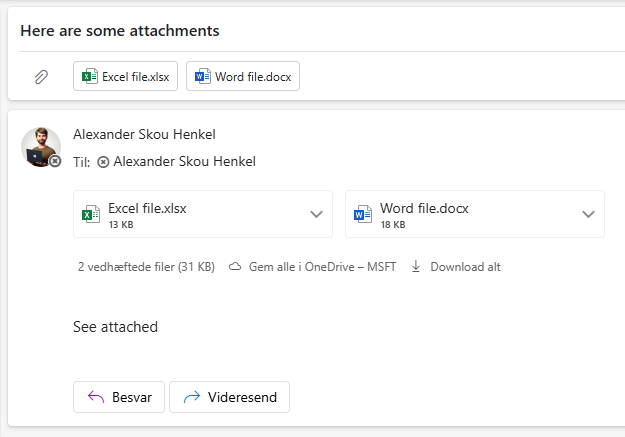
Learn how to send SharePoint list item attachments by e-mail, using Power Automate and JSON
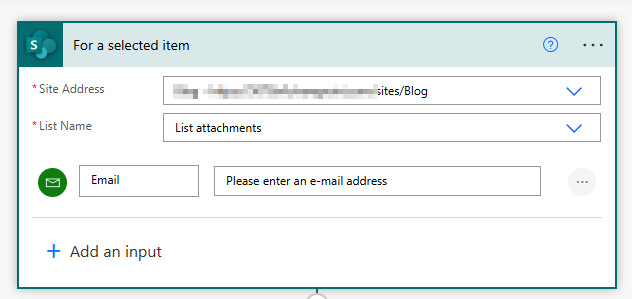
Step 1
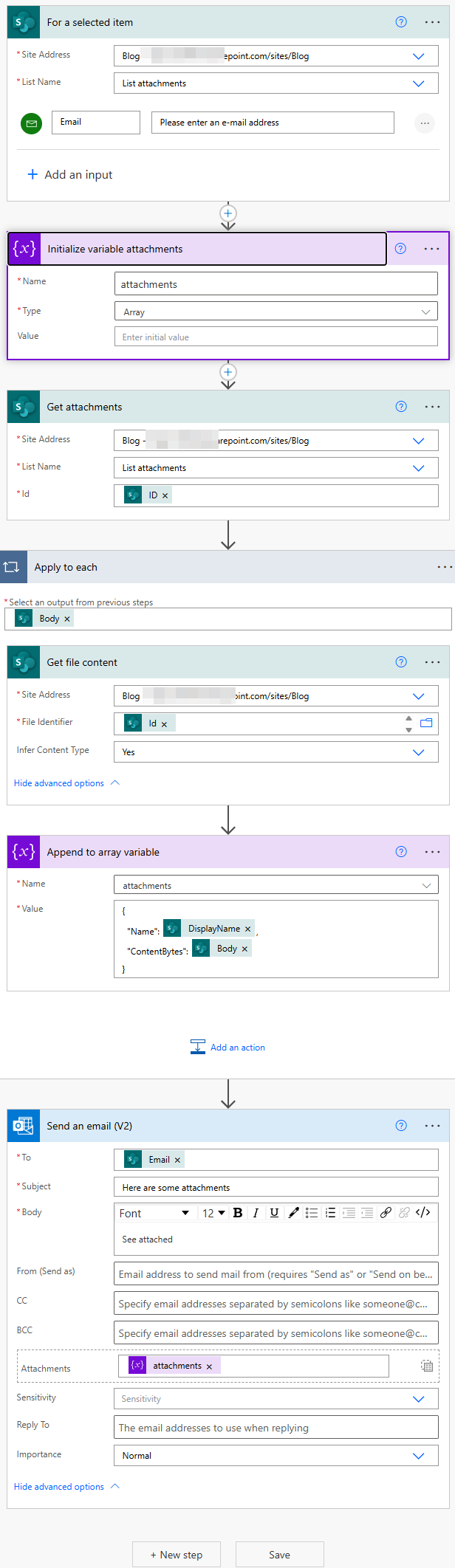
Create a new automated cloud flow and select the trigger action for a selected item
Insert Email as input
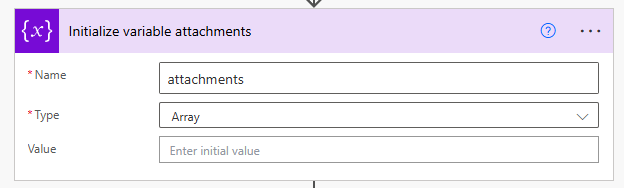
Step 2
Initialize a variable as an array and name it attachments
Step 3
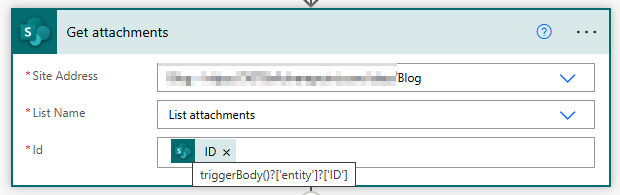
We want to know which attachments we have available in the list item.
Insert an get attachments action.
The Id should be from our trigger action
Step 4
We want to append the content of each attachment to our array
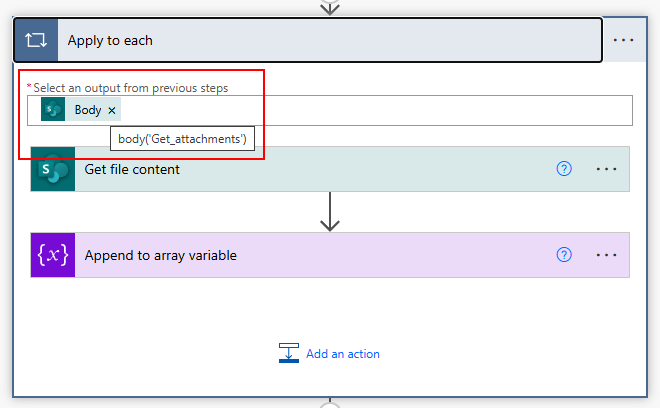
To do this, insert an apply to each action, and insert the body from get attachments
Step 5
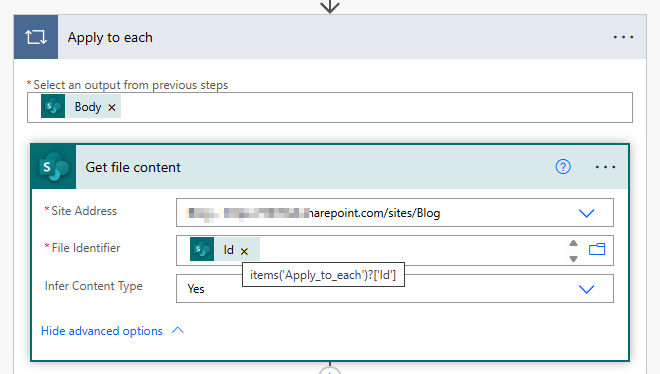
Insert an get file content action inside the apply to each, and use the Id from get attachments, in the file identifier
Step 6
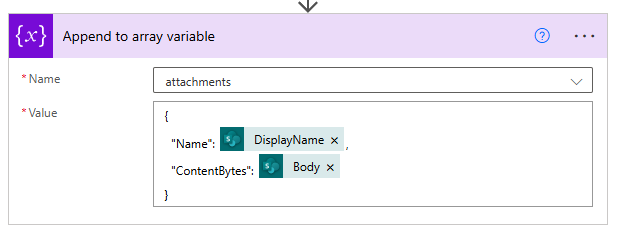
Insert an append to array action and insert below code.
{
  "Name": @{items('Apply_to_each')?['DisplayName']},
  "ContentBytes": @{body('Get_file_content')}
}
Step 7
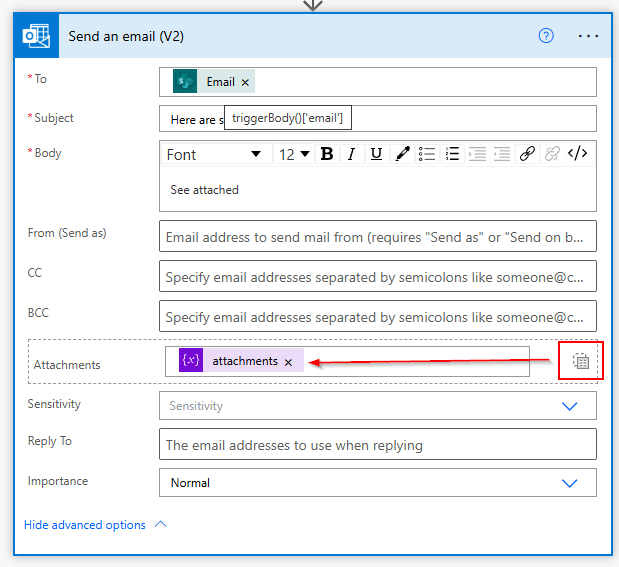
Outside the apply to each action insert an send an email action.
Click the switch to array icon, and insert the variable attachments
To should be the email input from the trigger action
The flow is ready
This is how the entire flow looks like
Start flow from a button
We can start a flow from a button on the list.
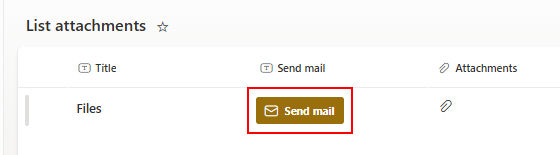
Create a new text column and insert the following JSON code in format this column
{
  "$schema": "https://developer.microsoft.com/json-schemas/sp/v2/column-formatting.schema.json",
  "elmType": "div",
  "style": {
    "align-items": "center",
    "margin-top": "2px",
    "margin-bottom": "2px"
  },
  "customRowAction": {
    "action": "executeFlow",
    "actionParams": "{\"id\":\"<Insert-Flow-Identifier-Here>\", \"headerText\":\"Send mail with attachments\",\"runFlowButtonText\":\"Send mail\"}"
  },
  "children": [
    {
      "elmType": "span",
      "attributes": {
        "class": "ms-bgColor-themePrimary ms-fontWeight-bold ms-bgColor-themeDarker--hover"
      },
      "style": {
        "height": "30px",
        "width": "2x",
        "text-decoration": "none",
        "display": "flex",
        "align-items": "center",
        "text-align": "center",
        "justify-content": "center",
        "margin": "5px",
        "color": "#fff",
        "border-radius": "3px",
        "cursor": "pointer"
      },
      "children": [
        {
          "elmType": "span",
          "attributes": {
            "iconName": "Mail",
            "class": "ms-fontColor-themePrimary ms-fontColor-themeDarker--hover ms-font-m",
            "title": "Details"
          },
          "style": {
            "color": "#fff",
            "flex": "none",
            "margin-right": "8px",
            "margin-left": "10px"
          }
        },
        {
          "elmType": "span",
          "style": {
            "margin-right": "10px"
          },
          "txtContent": "Send mail"
        }
      ]
    }
  ]
}
Replace <Insert-Flow-Identifier-Here> with your flow identifier.
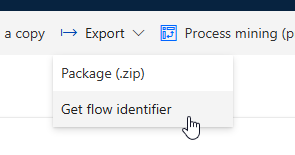
You get the flow identifier from the export menu
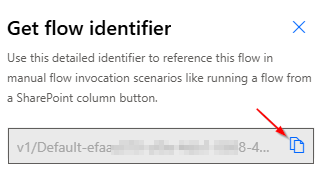
Copy the entire identifier
Finally we can run our flow, and receieve an e-mail with the list attachments