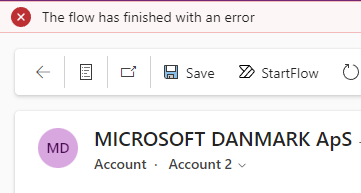
Learn how to start a Power Automate flow in a model driven app with the modern ribbon
The challenge
In an earlier post I explained how you could start a Power Automate Flow with a custom button using Ribbon Workbench
This requires you to install a new solution - but we do also have the possibility to do the same with the modern ribbon
One of the things I missed the most about the Ribbon Workbench was the possibility to refresh (or save) the form - the below code can do that :)
Solution
Step 1
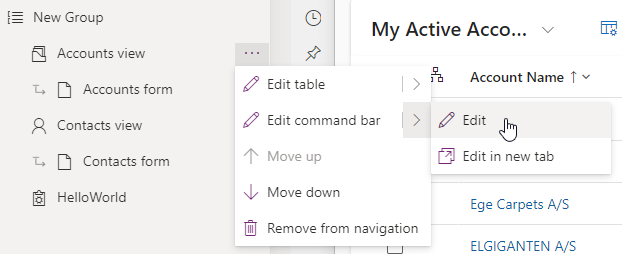
Go to your app and select Edit command bar -> Edit
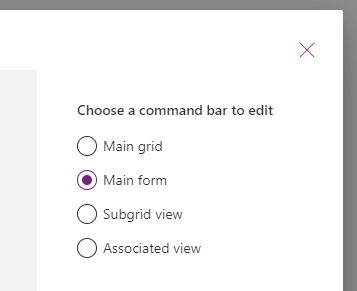
Choose Main form and select Edit
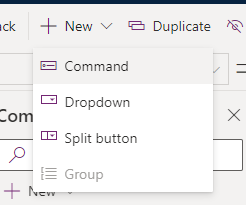
Choose New -> Command
Give your new button a name and an icon
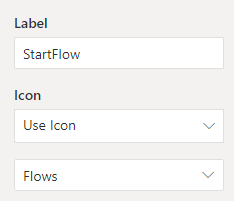
We will come back to the button later
Step 2
Power Automate Flow
Go to make.powerautomate.com and create a new Automated cloud flow
As a trigger you should use When a HTTP request is received
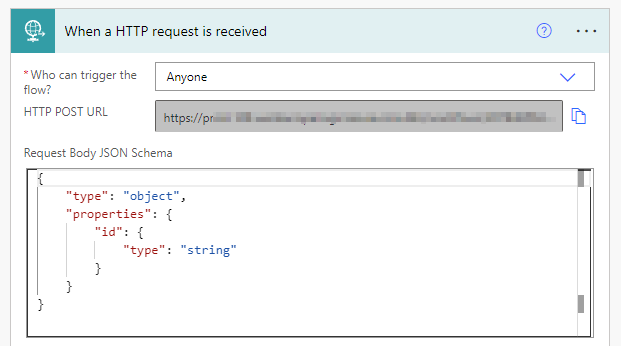
Notice that here is a security risk. Since anyone who (potentially) has this URL could start your flow.
In Request Body JSON schema insert the following code
{
    "type": "object",
    "properties": {
        "id": {
            "type": "string"
        }
    }
}
This code will get the ID of the record. We can use this ID to receive the remaining information about the record by using Get a row by ID action

Next insert a new action called Response and insert 200 in Status code

Now you could add an action that updates your current record. Use the action Update a row and use the id from your trigger (When a HTTP request is received)
Webhook URL
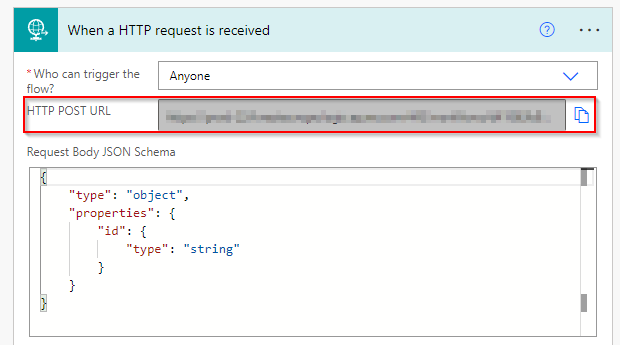
You need to save your Power Automate flow before you can get the HTTP POST URL. Once it has been saved, copy the URL from your trigger action, and insert it into the code below
The code
The below code is written so that you have some flexibility without having to understand code.
In all of the lines down to #132 you can change the value of the variables.
You can begin by just copy-pasting the code and save it as a .js file (don’t forget to insert your http post url in the first variable)
// Power Automate HTTP POST URL from the trigger "When an HTTP request is received"
// Insert the link between the ` and `
// This field is required to change
const flowURL = `INSERT YOUR HTTP POST URL FROM POWER AUTOMATE HERE`;

// Popup confirmation before running the flow
const confirmationOptionsShow = true; // use false if no confirmation is needed
const confirmationOptionsText = "Do you want to start the flow?"; // Confirmation text
const confirmationOptionsTitle = "Start flow"; // Confirmation header
const confirmationOptionsHeight = 200; // Height
const confirmationOptionsWidth = 150; // Width
const confirmationOptionsOKLabel = "Ok"; // Confirm button text
const confirmationOptionsCancelLabel = "Cancel"; // Cancel button text

// Top bar notification while flow is running
const flowRunningOptionsShow = true; // use false if no message is needed
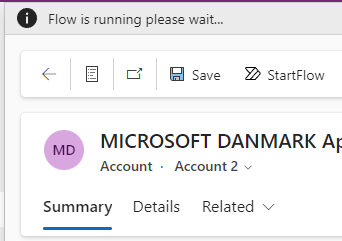
const flowRunningOptionsText = "Flow is running please wait..."; // Notification text

// Top bar notification when the flow has finished successfully
const flowRunningOptionsSuccessShow = true; // use false if no message is needed
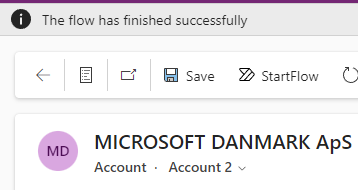
const flowRunningOptionsSuccess = "The flow has finished successfully"; // Notification text

// Popup confirmation when the flow has finished successfully
const successOptionsShow = false; // use true if a popup message should be shown
const successOptionsText = "The flow has finished successfully"; // Confirmation text
const successOptionsTitle = "Flow was successful"; // Confirmation header
const successOptionsHeight = 200; // Height
const successOptionsWidth = 150; // Width
const successOptionsConfirmationLabel = "Ok"; // Confirm button text

// Popup confirmation if the flow has finished with an error
const errorOptionsShow = false; // use true if a popup message should be shown
const errorOptionsText = "The flow has failed"; // Confirmation text
const errorOptionsTitle = "Error"; // Confirmation header
const errorOptionsHeight = 200; // Height
const errorOptionsWidth = 150; // Width
const errorOptionsConfirmationLabel = "Ok"; // Confirm button text

// Top bar notification if the flow has finished with an error
const flowRunningOptionsErrorShow = true; // use false if no message is needed
const flowRunningOptionsError = "The flow has finished with an error"; // Confirmation text

// Clear top bar after X seconds
const removeNotificationsOptions = 10000; // Milliseconds

// Refresh the form when the flow has finished
const refreshFormOptions = true; // use false if the form should not be refreshed

// Save the record before the flow is running
const saveFormBeforeRunningOptions = true; // use false if the record should not be saved (higher risk of failure)

// NO NEED TO CHANGE BELOW CODE //

// Get record ID
const getEntityValues = async (FormContext) => {
    const entityId = FormContext.data.entity.getId().replace("{", "").replace("}", "");
    return entityId;
};

// Send the entityId to Power Automate
const postEntityId = async (recordId) => {
    const requestOptions = {
        method: 'POST',
        headers: {
            'Content-Type': 'application/json'
        },
        body: JSON.stringify({ id: recordId }),
        redirect: 'follow'
    };

    try {
        const response = await fetch(flowURL, requestOptions);
        return response.ok;
    } catch (error) {
        console.error('Failed to post entity ID:', error);
        return false;
    }
};

// Main function to handle the button click
async function main(FormContext) {
    try {
        const entityId = await getEntityValues(FormContext);

        // Show confirmation dialog
        if (confirmationOptionsShow) {
            const confirmStrings = { text: confirmationOptionsText, title: confirmationOptionsTitle, confirmButtonLabel: confirmationOptionsOKLabel, cancelButtonLabel: confirmationOptionsCancelLabel };
            const confirmOptions = { height: confirmationOptionsHeight, width: confirmationOptionsWidth };
            const confirmed = await new Promise((resolve) => {
                Xrm.Navigation.openConfirmDialog(confirmStrings, confirmOptions).then(
                    function (success) {
                        resolve(success.confirmed);
                    }
                );
            });

            if (!confirmed) {
                return;
            }
        }

        // Save the form before running the flow
        if (saveFormBeforeRunningOptions) {
            await FormContext.data.entity.save();
        }

        // Show flow is running notification
        if (flowRunningOptionsShow) {
            FormContext.ui.setFormNotification(flowRunningOptionsText, "INFO", entityId);
        }

        const flowCompleted = await postEntityId(entityId);

        if (flowCompleted) {
            // Refresh the form
            if (refreshFormOptions) {
                FormContext.data.refresh(false);
            }
            // Success message to user
            if (flowRunningOptionsSuccessShow) {
                FormContext.ui.setFormNotification(flowRunningOptionsSuccess, "INFO", entityId);
            }
            // Success popup to user
            if (successOptionsShow) {
                const confirmStringsSuccess = { text: successOptionsText, title: successOptionsTitle, confirmButtonLabel: successOptionsConfirmationLabel };
                const confirmOptionsSuccess = { height: successOptionsHeight, width: successOptionsWidth };
                Xrm.Navigation.openAlertDialog(confirmStringsSuccess, confirmOptionsSuccess);
            }
        } else {
            // Error notification to user
            if (flowRunningOptionsErrorShow) {
                FormContext.ui.setFormNotification(flowRunningOptionsError, "ERROR", entityId);
            }
            // Error popup to user
            if (errorOptionsShow) {
                const confirmStringsError = { text: errorOptionsText, title: errorOptionsTitle, confirmButtonLabel: errorOptionsConfirmationLabel };
                const confirmOptionsError = { height: errorOptionsHeight, width: errorOptionsWidth };
                Xrm.Navigation.openAlertDialog(confirmStringsError, confirmOptionsError);
            }
        }
        // Clear notifications
        if (flowRunningOptionsErrorShow || flowRunningOptionsSuccessShow || flowRunningOptionsShow) {
            setTimeout(function () {
                FormContext.ui.clearFormNotification(entityId);
            }, removeNotificationsOptions);
        }
    } catch (error) {
        console.log(`Main function failed: ${error}`);
    } finally {
        console.log("Main function stopped");
    }
}
Step 3
To upload your new JavaScript file go back to your button and change the action to Run JavaScript
Select Add library
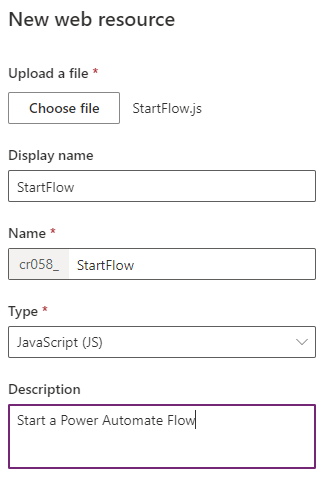
Select New web resource
Upload your file, and give it a name, and click Save and publish
In Function name write main and in Parameter 1 select PrimaryControl
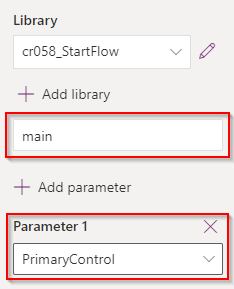
Click Save and Publish and your new button should be ready.
If you want to edit some of the variables/options in the flow, simply re-upload the file again by clicking the pen
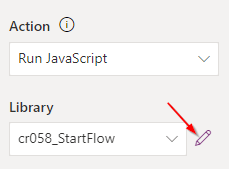
Click choose file and save and publish - go back to your model driven app and refresh the page, and the new script is ready to run
Reference
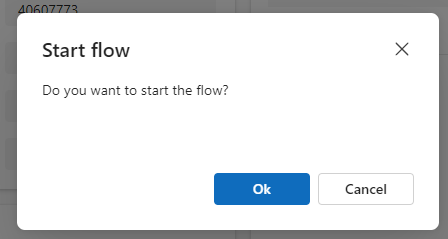
Here are a few snapshots of the flow running
Confirmation
Notification
Success message
Error message