Kontakt os

Avoid loops when working with multi choice columns for emails and approvals

Learn how to extract values from a multi choice column in SharePoint, and avoid loops in Power Automate


The challenge

If you want to sent some details from a multi choice column in an email or an approval flow, Power Automate will create a loop since the value is an array
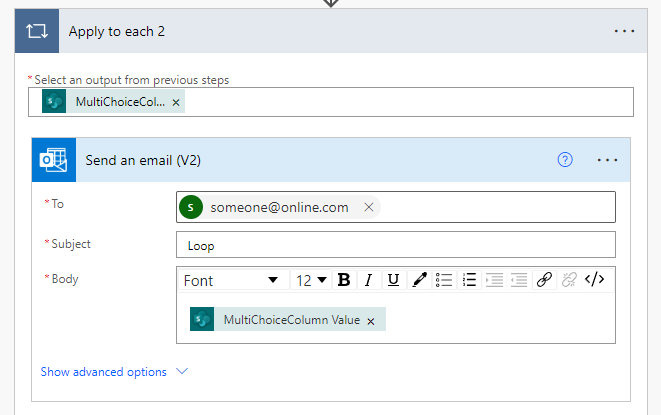
Power Automate flow showing an unwanted loop being created automatically when referencing a multi-choice column value in an email action

Here is how to avoid that

Step 1
Initialize a new Array variable (I have called mine MultiChoiceColumn)
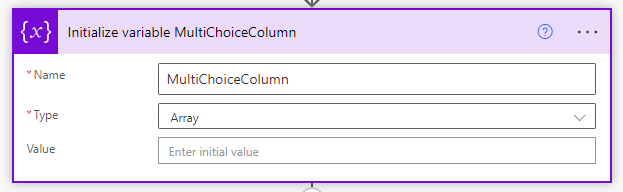
Power Automate Initialize variable action configured as an Array type named MultiChoiceColumn

Step 2
Create an Append to array variable action and in Value insert your ColumnName Value
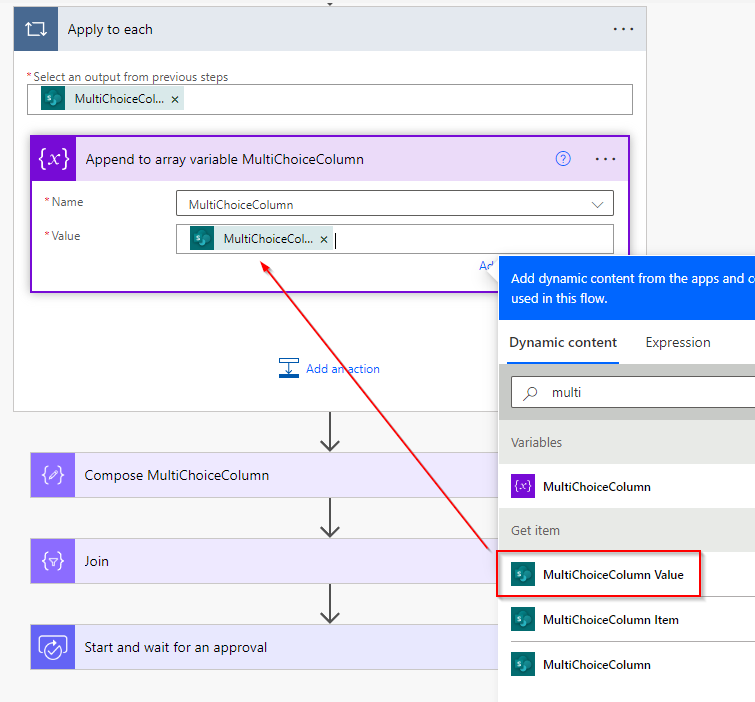
Power Automate Append to array variable action with the multi-choice column value inserted, with Power Automate automatically wrapping it in a loop

Power Automate will automatically create a loop. This is fine, keep the loop

Step 3
Outside the loop create a Compose action and in Inputs insert the Array value you created in the first step
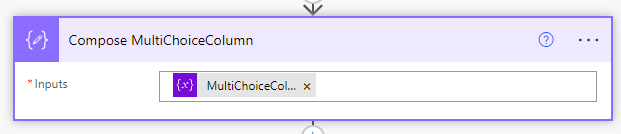
Power Automate Compose action placed outside the loop with the MultiChoiceColumn array variable as its input

Step 4
Create a new Join action.

From should be Outputs from your Compose action and in Join with insert a comma and a space
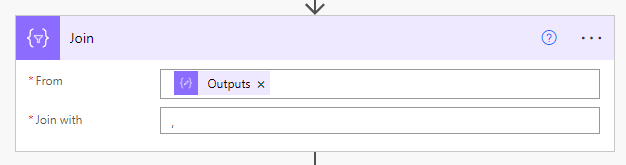
Power Automate Join action with From set to the Compose output and Join with set to a comma and space to produce a single string

Step 5
In your e-mail you can now insert the output from your Join action
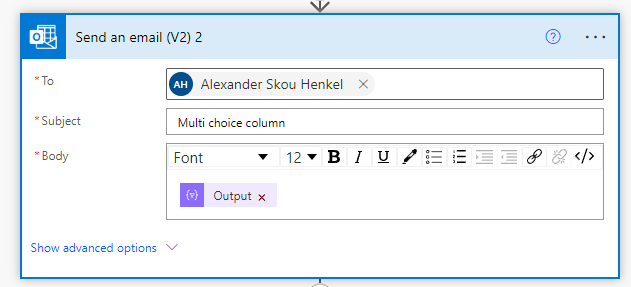
Power Automate Send an email action with the Join action output inserted into the email body field

Your e-mail should now look like this
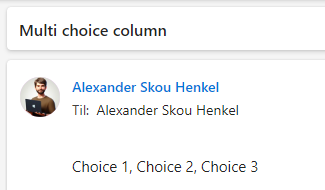
Resulting email showing the multi-choice column values joined as a single comma-separated string in one line

If you don’t want your choices to be in a single string, your can replace the comma and space with <br> to create a line break
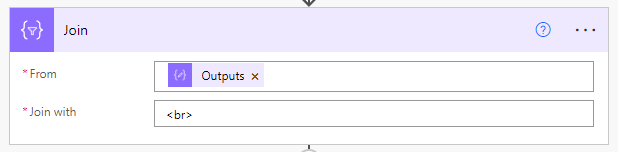
Power Automate Join action with Join with field changed from comma-space to a HTML br tag to create line breaks in email

Your e-mail should now look like this
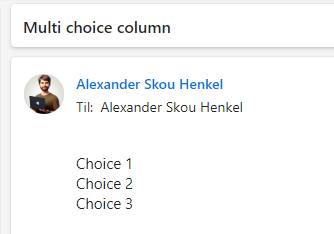
Resulting email showing the multi-choice column values each on their own line using HTML line breaks

Approval flow

We can’t use <br> to create line breaks in an approval flow, it would look like this
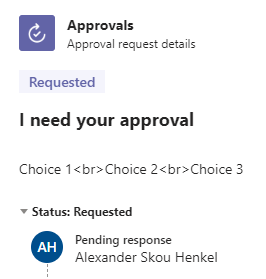
Approval flow notification showing the raw HTML br tags displayed as literal text instead of rendering as line breaks

Here is how to create a line break for approval flows

Step 1
Initialize a new string variable and in the value press enter once (it looks blank, but the string now holds an enter value)
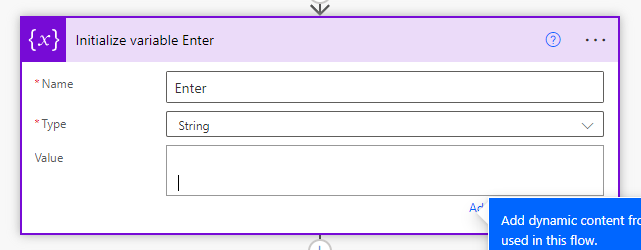
Power Automate Initialize variable action as a String type with the value field containing a hidden newline character entered by pressing Enter

Step 2
Insert the variable in the Join with
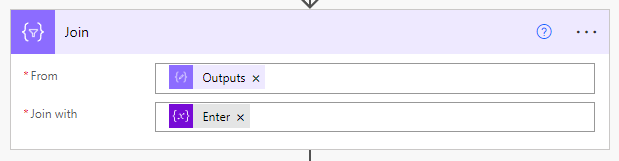
Power Automate Join action with the newline string variable inserted in the Join with field for approval-compatible line breaks

Step 3
Insert the Outputs from your join action in the Details option
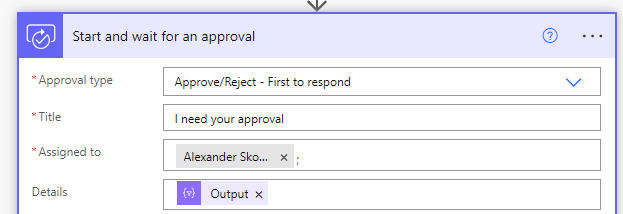
Power Automate Start and wait for an approval action with the Join output inserted into the Details field for the approval request

Your approval flow should now look like this
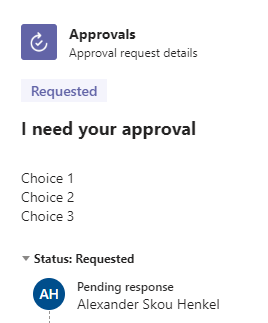
Approval notification showing the multi-choice column values correctly displayed on separate lines without raw HTML tags

Here is the entire flow

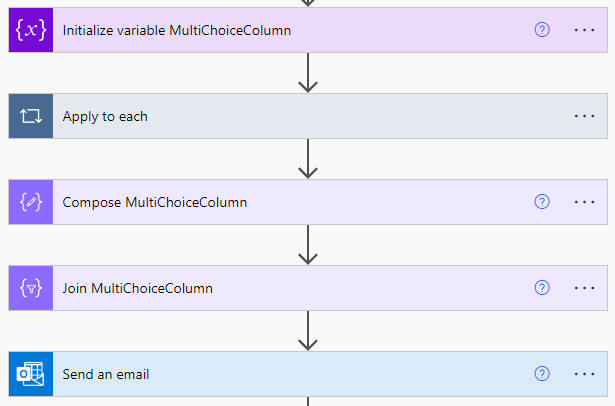
Complete Power Automate flow overview showing all steps from array initialization through loop, compose, join, and approval actions

If you have several choice columns, it would be best practice to use scopes (it would also be best practice to use a scope if you have only 1 column)
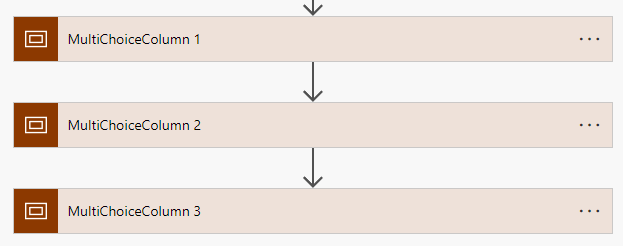
Power Automate flow with scope actions wrapping the multi-choice column logic as best practice for handling multiple choice columns

Pinksky bruger cookies for at forbedre funktionaliteten på denne hjemmeside. Du bestemmer selv hvad vi må bruge. Læs mere i vores cookiepolitik.