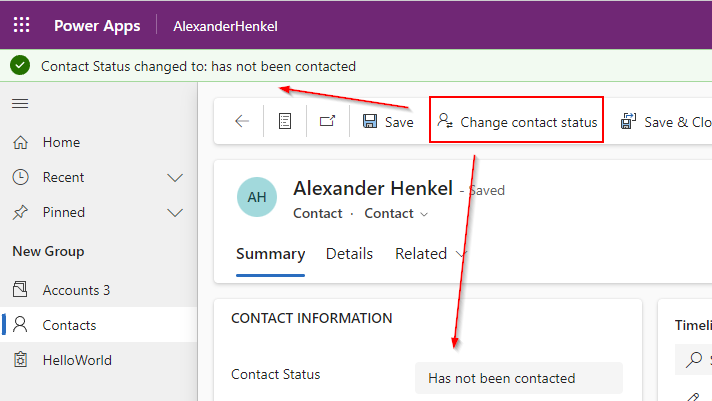
Learn how to create a custom button in Dynamics 365 and change a choice/option set value
The goal
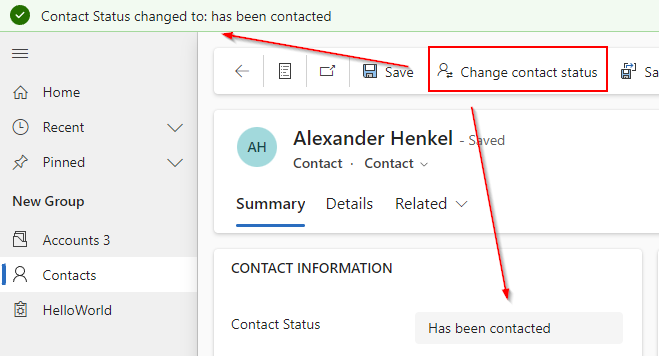
In this exercise we will add a custom button to our model driven app, for the user to change the value of an option set/choice column.
How to
Step 1
In the contacts table create a new choice field and add the following options:
- Has been contacted
- Has not been contacted
Add the field to your form
Step 2
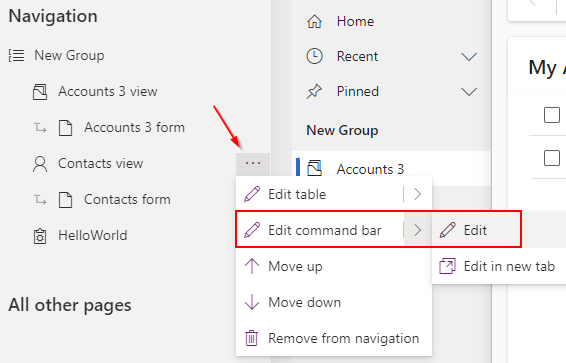
Edit your app, and in the navigation panel click the 3 dots on Contacts view -> Edit command bar -> Edit
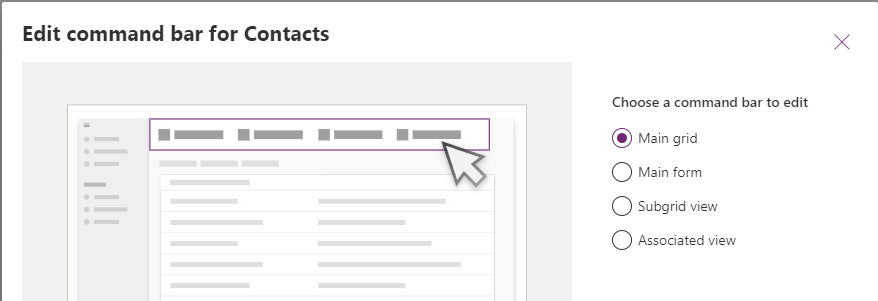
In the next window select Main Form
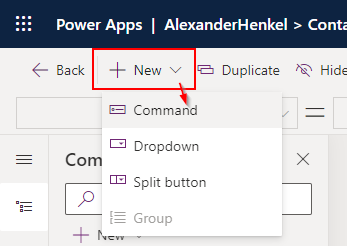
To add a new button to the ribbon click New in the top left corner and choose Command
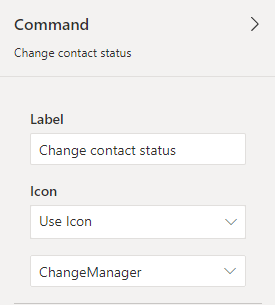
Select your new button and in the command menu bar select a name and an icon
Step 3
Add the following code to the OnSelect property of the button
If(
    Self.Selected.Item.'Contact Status' = 'Contact Status (Contacts)'.'Has not been contacted',
    Patch(
        Contacts,
            Self.Selected.Item,
                {'Contact Status': 'Contact Status (Contacts)'.'Has been contacted'}),
    Patch(
        Contacts,
        Self.Selected.Item,
                {'Contact Status': 'Contact Status (Contacts)'.'Has not been contacted'}
            )
    );
Notify("Contact Status changed to: " & Lower(Self.Selected.Item.'Contact Status'),
NotificationType.Success,5000);
Click save and publish
Step 4
Our new button is now ready in our model driven app, and can change the value of our record