
Learn how to extract JSON code into single columns in Power BI
The challenge
If you are provided with a column containing JSON code like the picture below, you want to split up the code into single columns, to be able to work with the data in Power BI
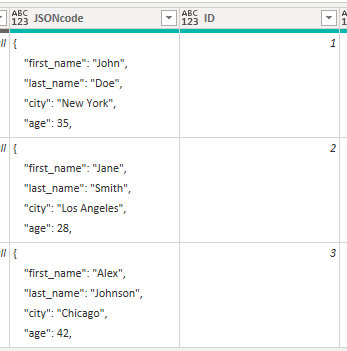
I have seen some scenarios where peoples first choice is to use the split column -> delimiter function, and then splitting by ,
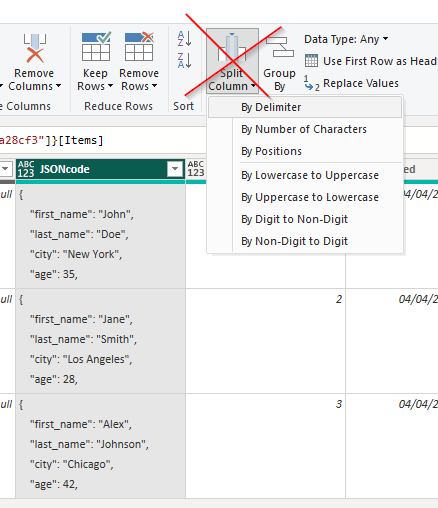
Don’t to that, because you will end up with columns that looks like this
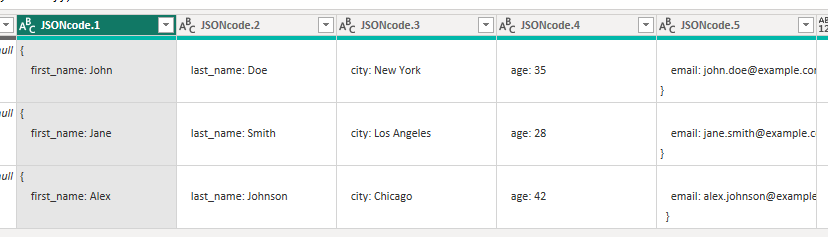
I am sure what you want them to look like is this

The solution
In the Power Query editor there is a function available under transform -> JSON

After you have transformed your data, your column will now look like this
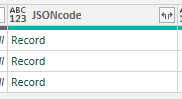
Click on the arrow and select all the columns that are relevant. If there are data/columns that you don’t need, leave them out (you can always add them later)
Also unselect Use original column as prefix

Now your JSON data will be split into separate columns, and you can continue working on your model
